Start with the right message.
Use saved exercise or live templates. Choose sites, departments and named groups, then review the message and exact recipient list.
 NuntivraMASS COMMUNICATION
Reach enrolled Windows desktops. See who has acknowledged. Close the loop with a clear green stand-down.
30-day trial · Windows application · Online licensing required
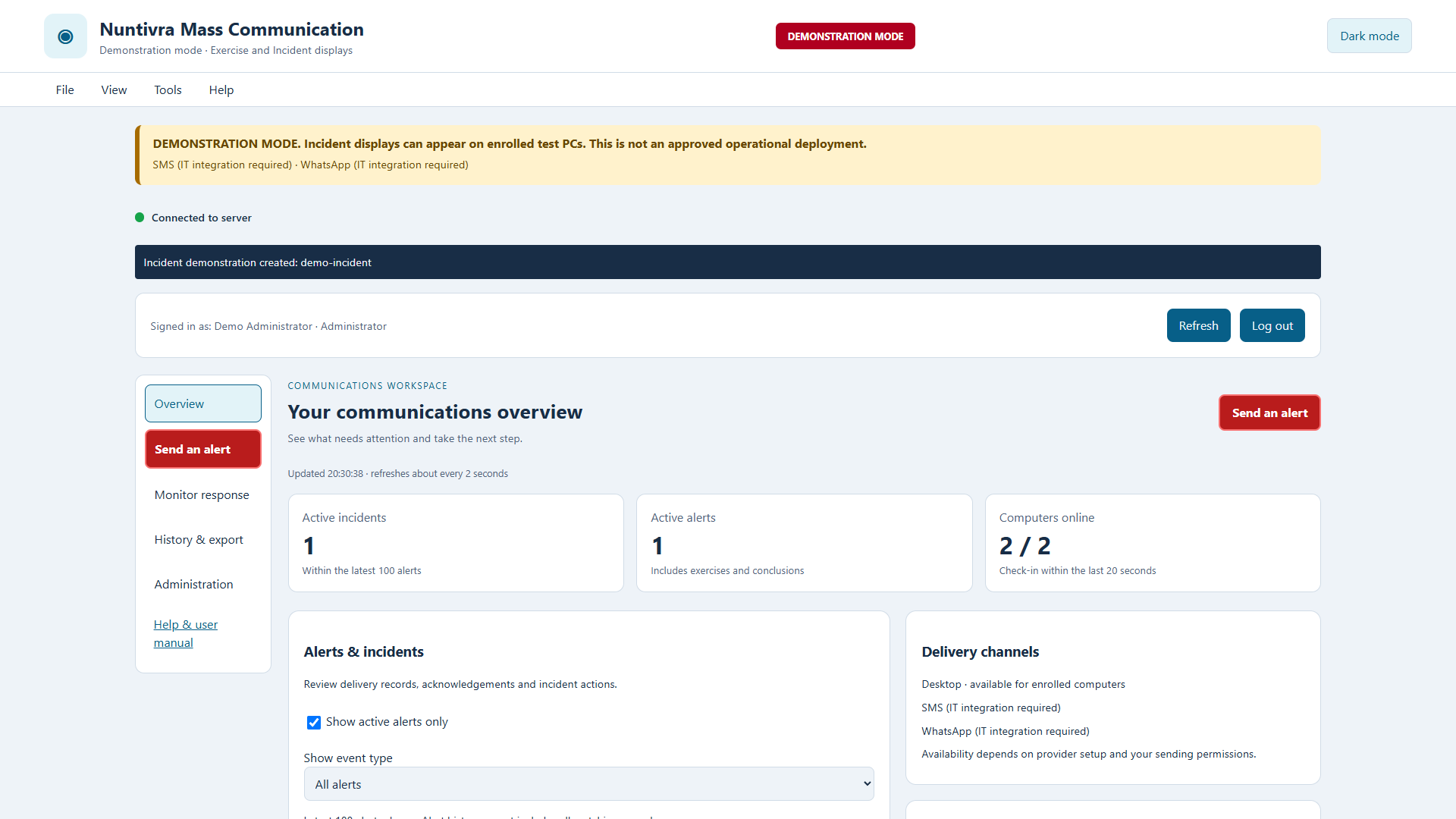
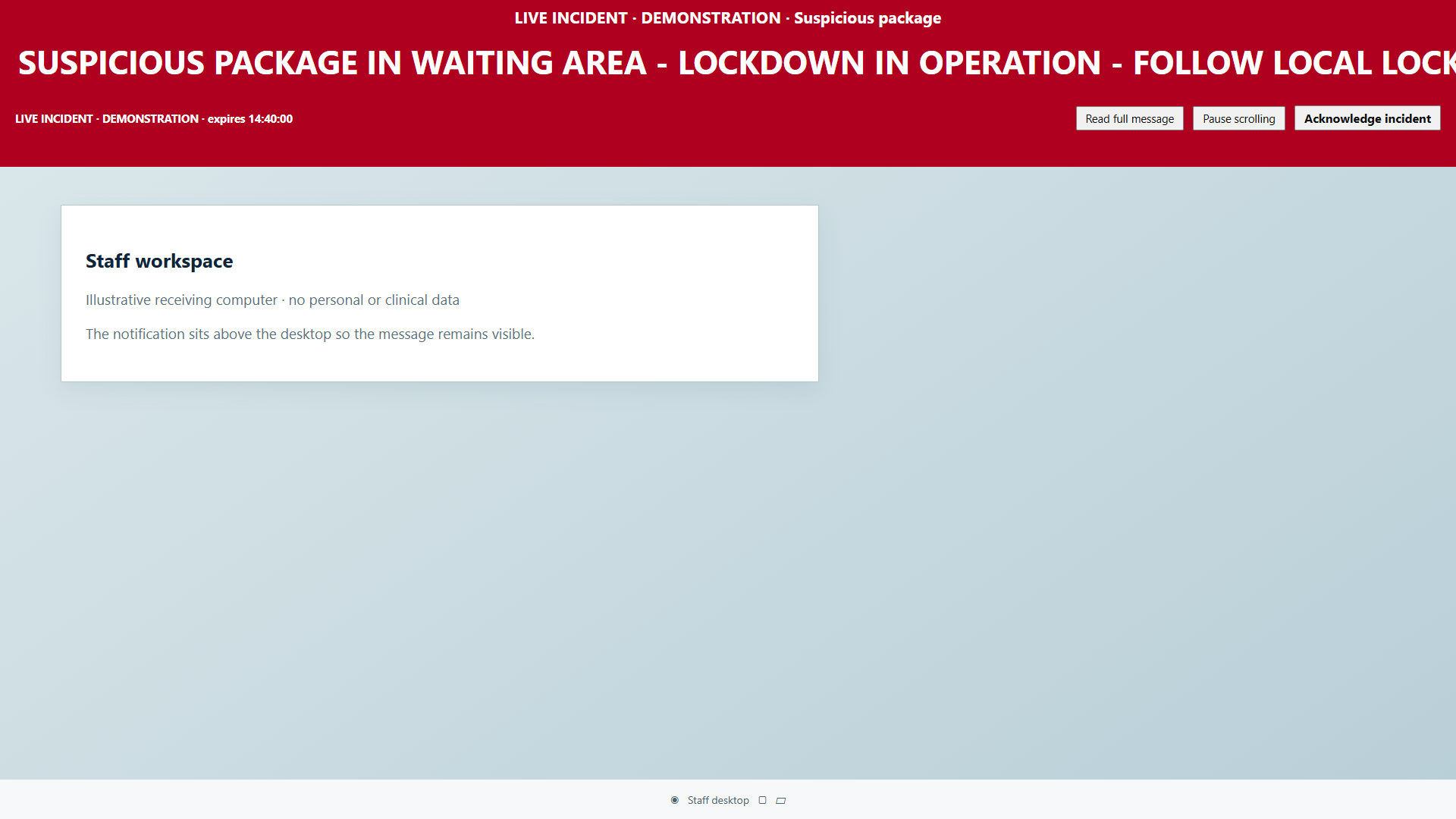
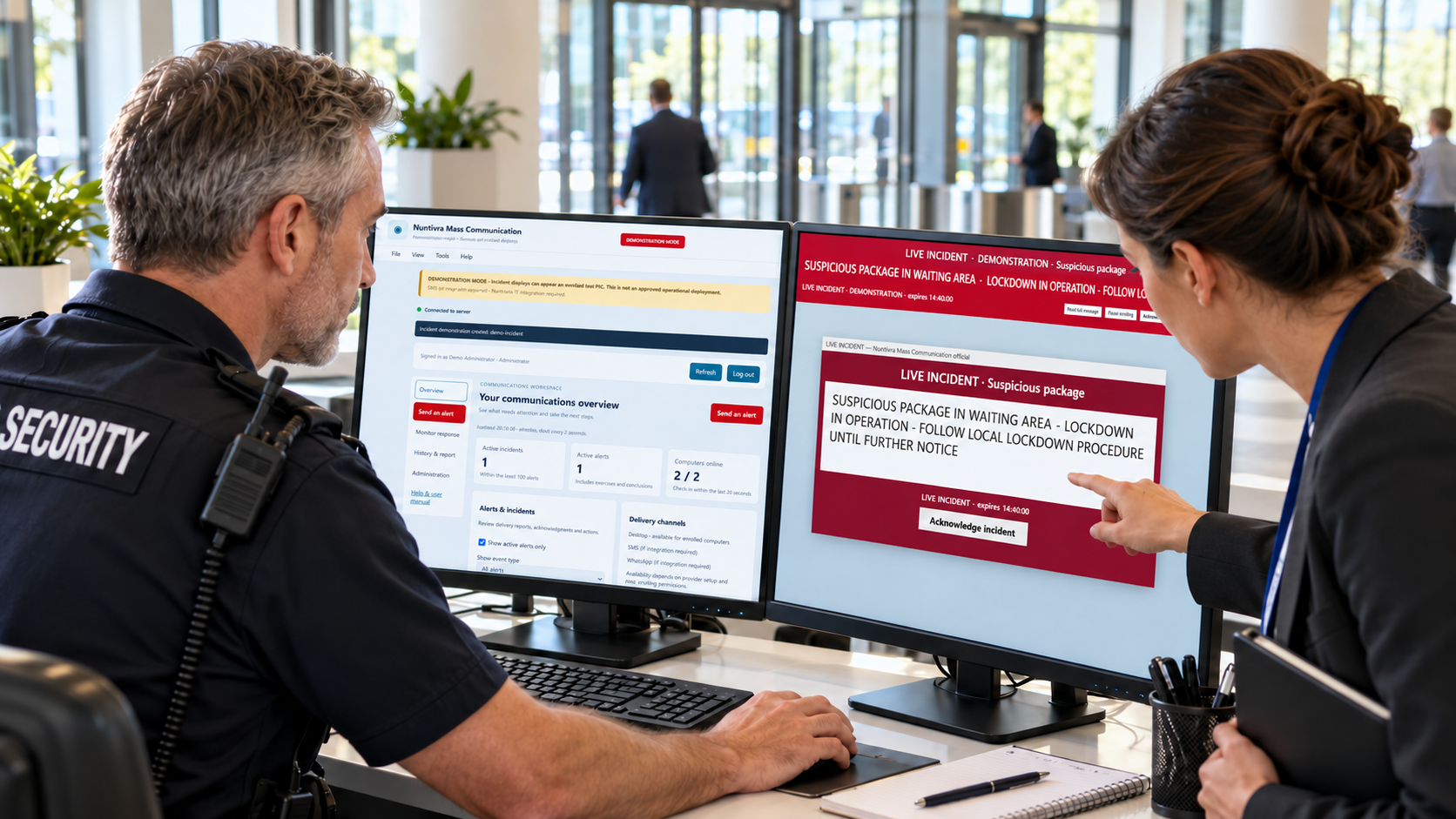
Current product screens with illustrative data. No live alerts are sent.
FROM THE FIRST ALERT TO STAND-DOWN
Prepare the message, select the right recipients and review before sending. Then follow the response from the same workspace.
Use saved exercise or live templates. Choose sites, departments and named groups, then review the message and exact recipient list.
Check desktop connectivity and each alert’s displayed and acknowledged states. Use history exports to review communications afterwards.
Send the green conclusion message to the original incident recipients. Stand-down and cancellation are distinct actions.
DESIGNED FOR OPERATORS
Saved templates speed up preparation. Live messages still require an incident reference, recipient review and the SEND LIVE ALERT confirmation.
Explore the current user guide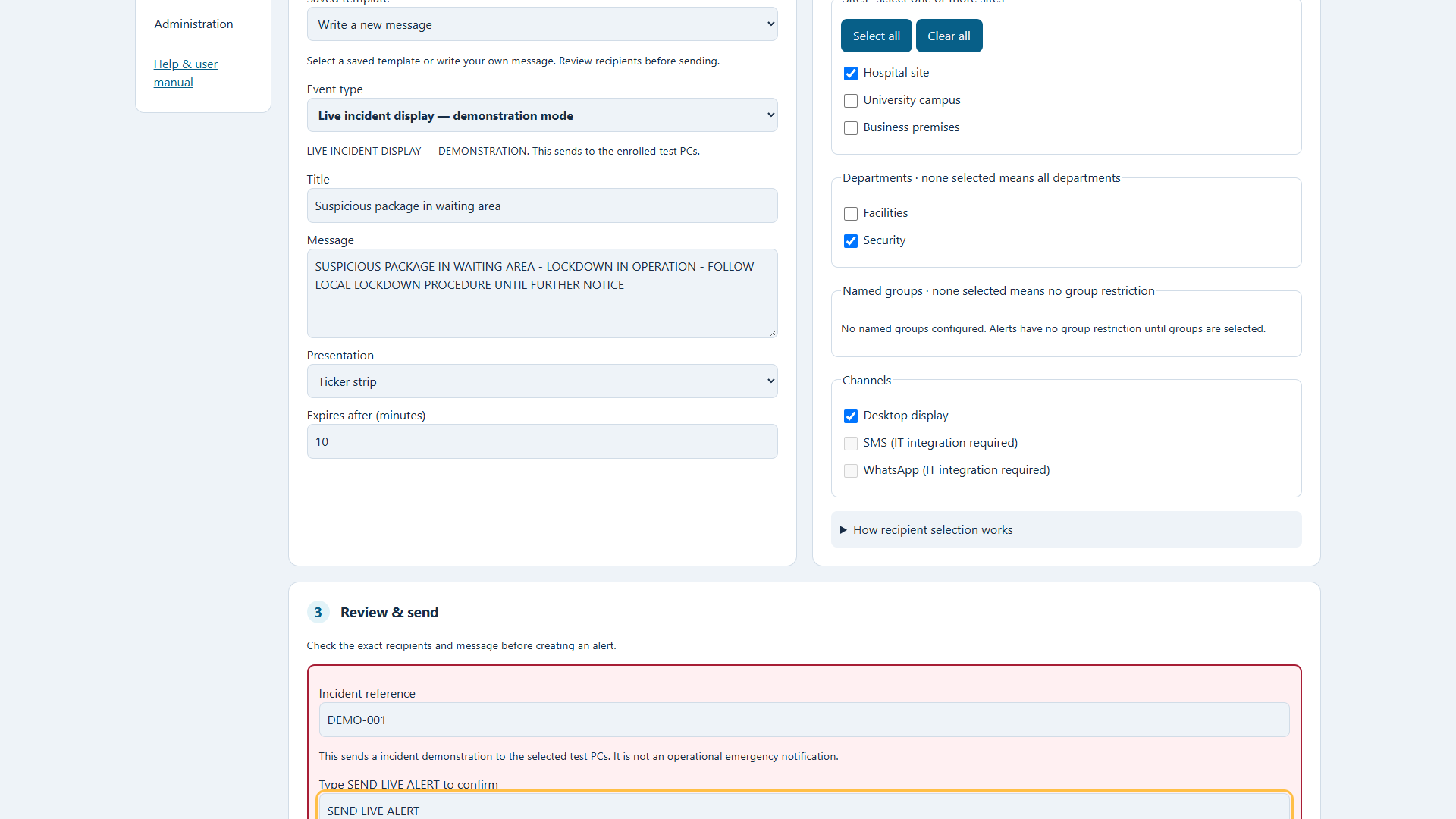
SEE THE WORKFLOW
A short product tour using the current application interface and faithful receiving-desktop previews. All incidents and records are demonstrations.
TRY THE RECEIVING VIEW
Switch between a red incident ticker, the critical alert box and a green incident stand-down. Try the controls without connecting to a server.
Optional two-note alert repeats until acknowledgement. Sound must be enabled on receiving agents.
Demonstration only. No real messages or acknowledgements are sent.
WEAPONS INCIDENT - LOCKDOWN IN OPERATION - FOLLOW LOCAL WEAPONS AND LOCKDOWN PROCEDURES UNTIL FURTHER NOTICE
WEAPONS INCIDENT - LOCKDOWN IN OPERATION - FOLLOW LOCAL WEAPONS AND LOCKDOWN PROCEDURES UNTIL FURTHER NOTICE
DIFFERENT PLACES. ONE CLEAR WORKFLOW.
Configure your own sites, departments and groups. A receiving computer can belong to more than one site or department.
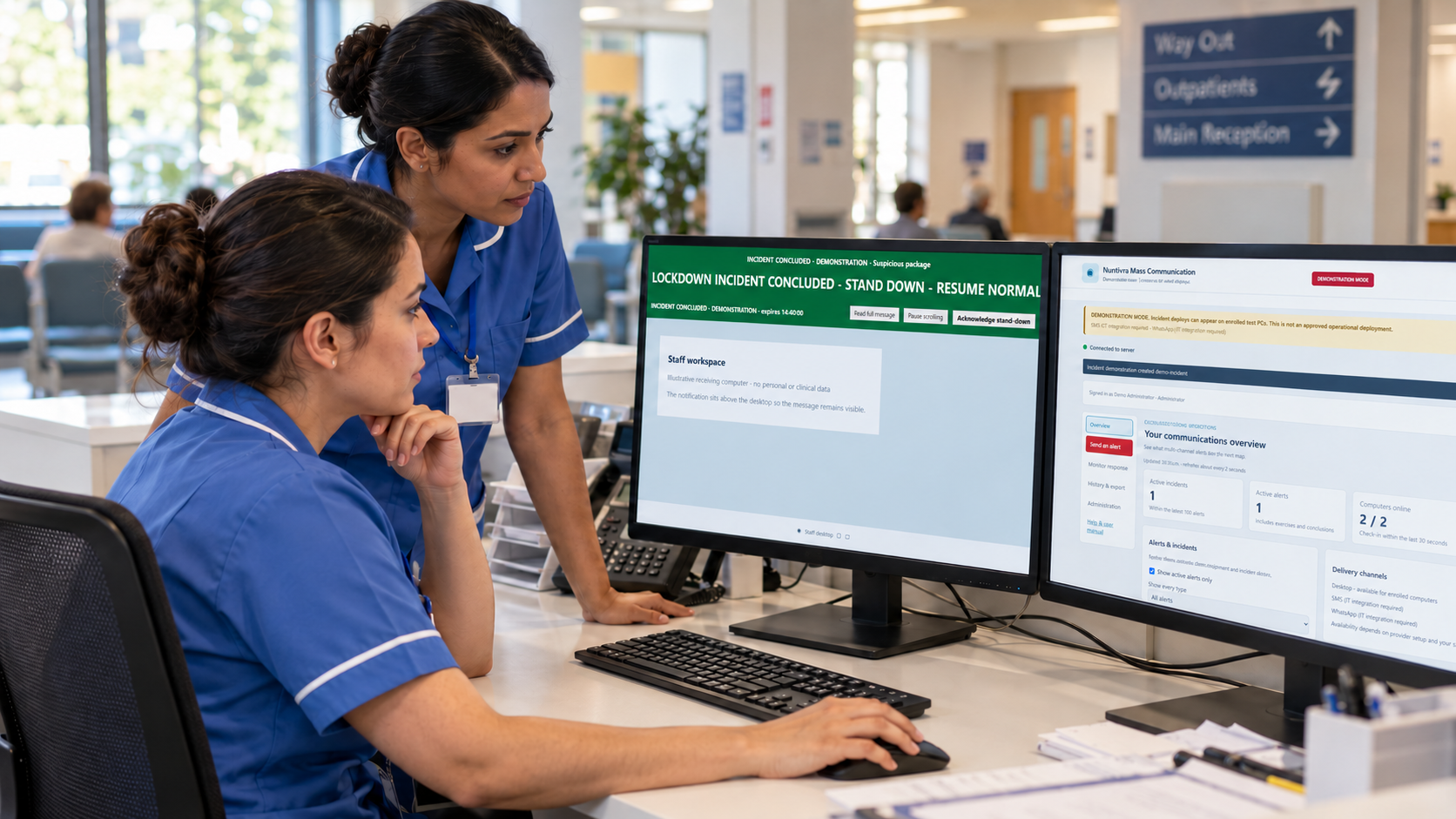
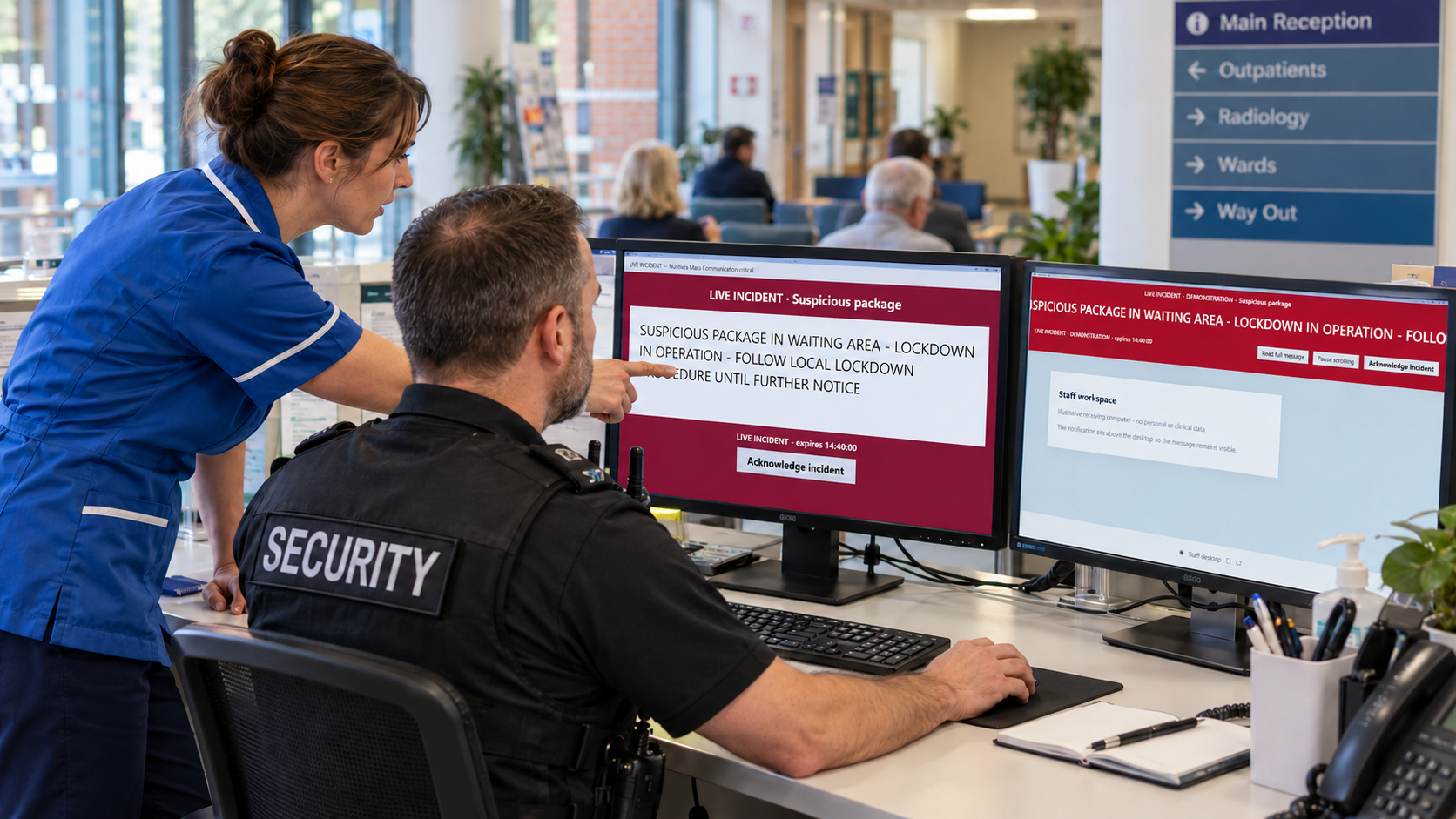
Coordinate teams across your own sites, departments and groups, from the initial alert to incident stand-down.
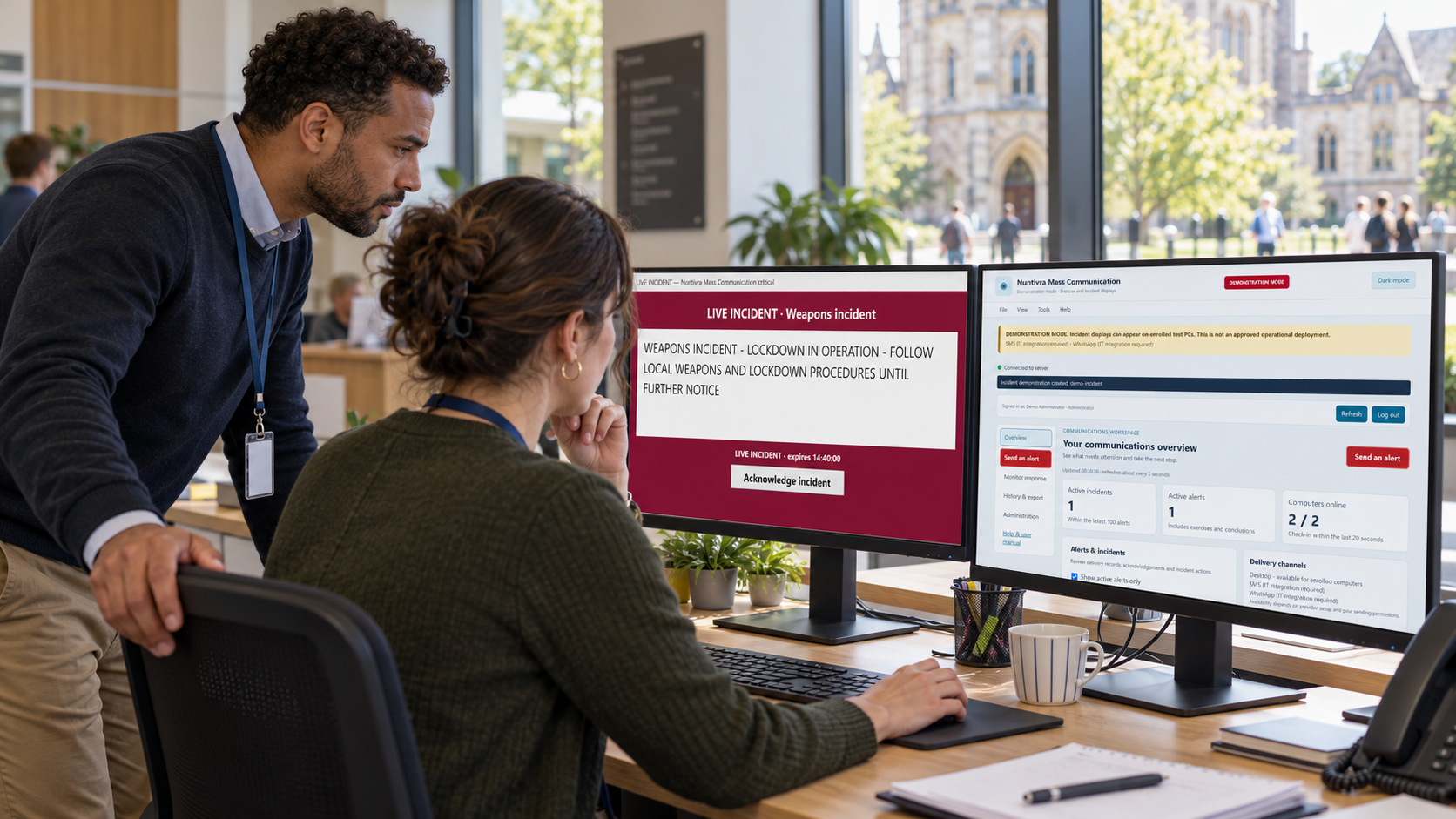
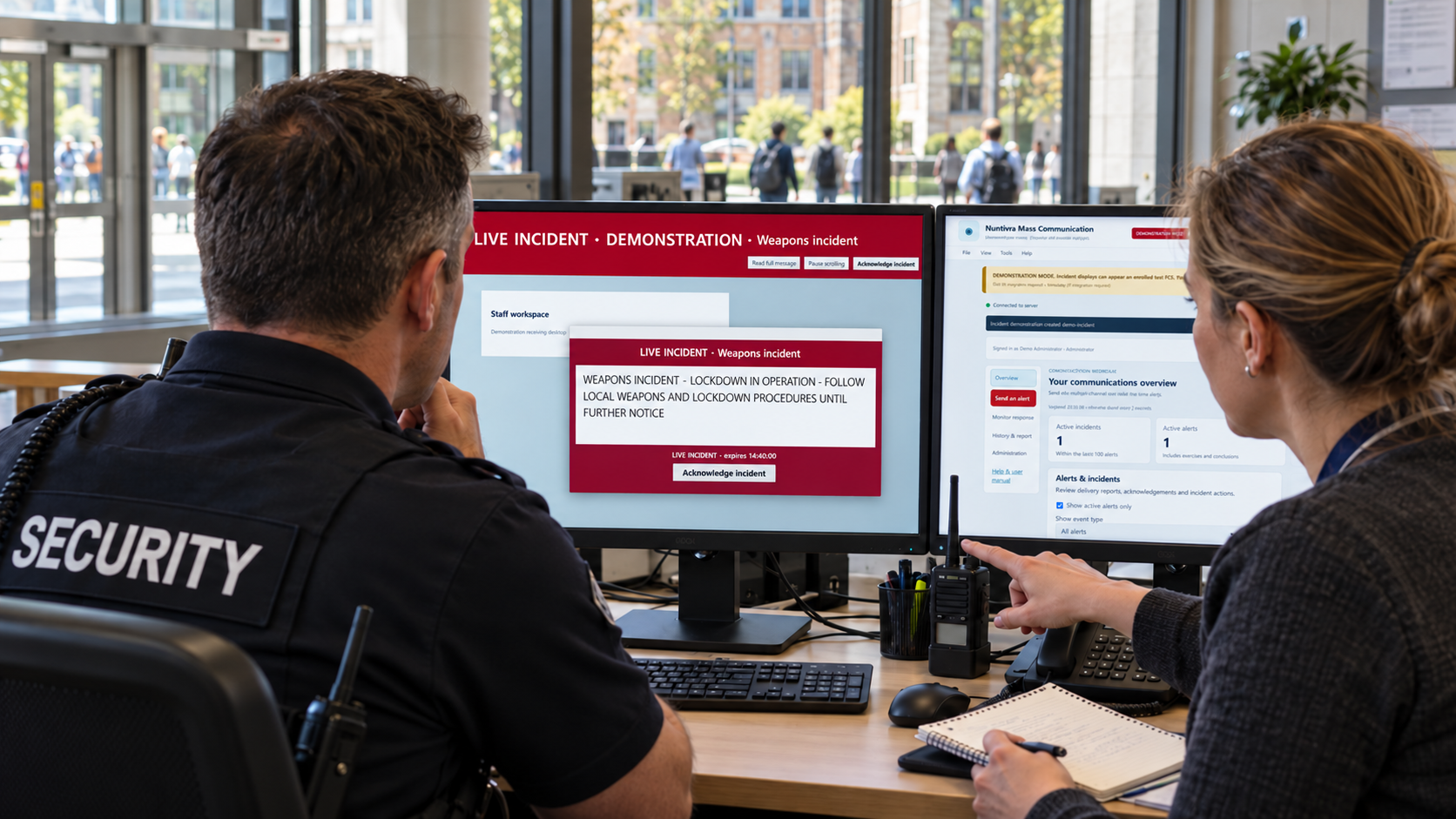
Coordinate teams across your own sites, departments and groups, from the initial alert to incident stand-down.
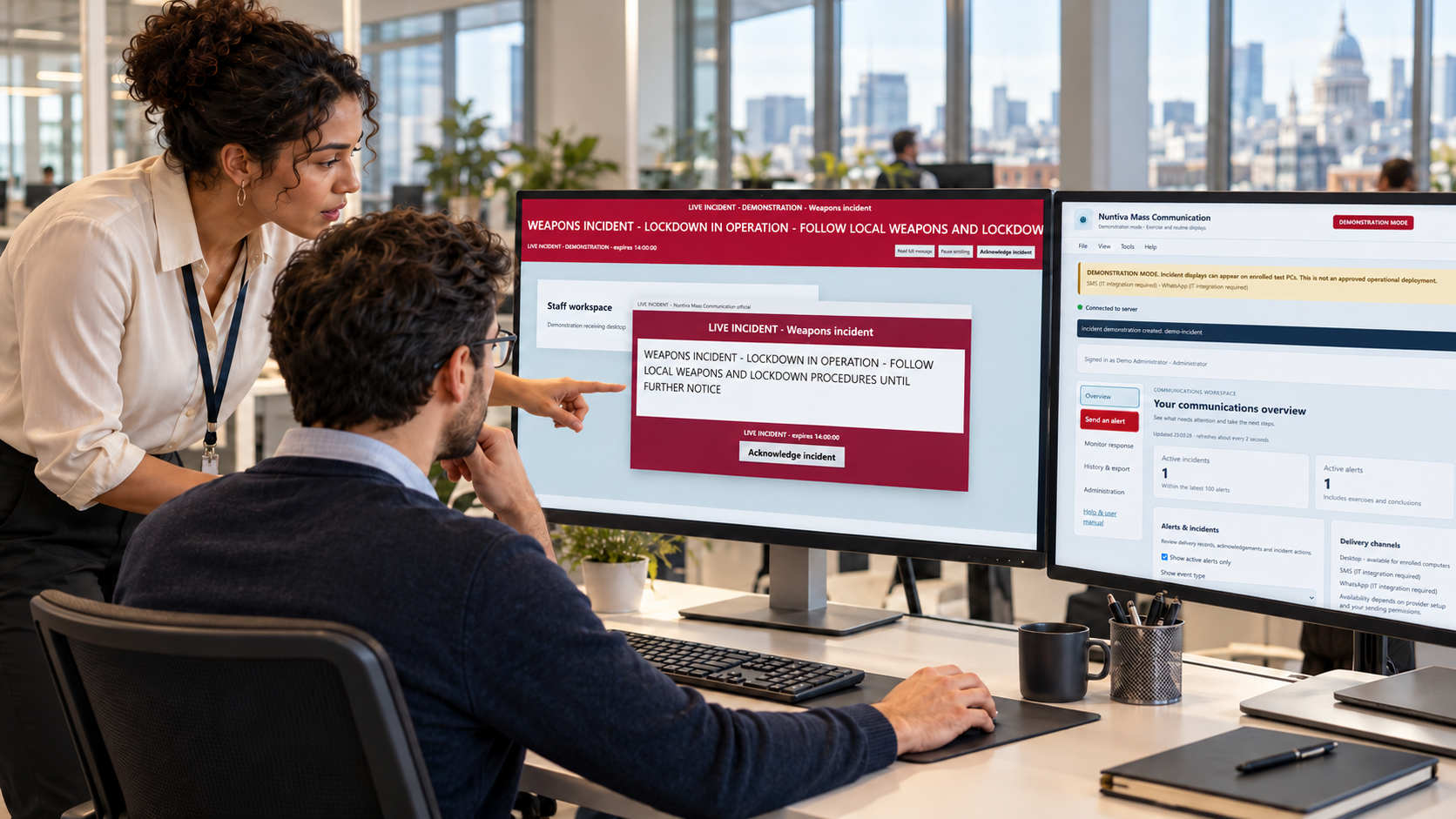
Coordinate teams across your own sites, departments and groups, from the initial alert to incident stand-down.
FOR THE PEOPLE WHO LOOK AFTER IT
Install the server, configure your directory and enrol the receiving computers. Keep the server running and validate the setup with an exercise before operational use.
AD users need to be synchronised or federated with Entra. IT configures app registration and group mappings; local Administrator recovery remains available.
Read the deployment and sign-in guideDownload the Windows installer. Enter your registration details and connect to the licensing service to begin the 30-day trial.
Add sites, departments and groups. Create manual dashboard users or configure optional Entra access.
Enrol each PC, download its private agent package and check an exercise alert, acknowledgement and conclusion.
Desktop alerting is supported directly. SMS and WhatsApp require a compatible business messaging/API account, a supported connector, successful connection and handset tests, and explicit IT enablement. Entering a mobile network account alone does not enable sending. Provider charges apply.
START WITH AN EXERCISE. CHOOSE YOUR LICENCE.
Each licence covers one server installation and its enrolled agents. Current prices, currency and billing terms are shown on the licensing page before payment.
A subscription that renews each year through Stripe.
A one-time purchase with no annual entitlement expiry.
Both buttons open the licence chooser, where you can select annual or lifetime. Applicable taxes and final charges are confirmed there. No payment details are collected on this website.
BEFORE YOU GET STARTED
You run the Nuntivra server application on a Windows host and install agents on enrolled receiving PCs. Your IT team manages connectivity, certificate trust and the deployment. Periodic online licensing is still required.
Yes. Manual dashboard accounts remain available alongside optional Entra sign-in. Keep a local Administrator account for recovery. Receiving-computer enrolment is a separate process.
No. Displayed and acknowledged states record application interactions. They do not verify a person’s safety, understanding or actions. Use your approved local procedures.
An online indicator shows a recent agent check-in. An offline PC may not receive an alert before it expires. Always check delivery records and use your organisation’s agreed alternative communication arrangements.
No. Cancellation removes an alert display. Stand-down creates a separate green incident-conclusion message for the original recipients. Those actions have different meanings in the application.
Download and install the server, enter your registration details and connect to the licensing service. Your connected 30-day trial can then start. Use the licence purchase link to choose an annual or lifetime licence and complete Stripe checkout.
The dashboard captures use the current application with synthetic records. The receiving-screen previews follow the current agent’s ticker layout, wording and colours. Environment images are illustrative scenarios, not photographs of customers or real incidents.